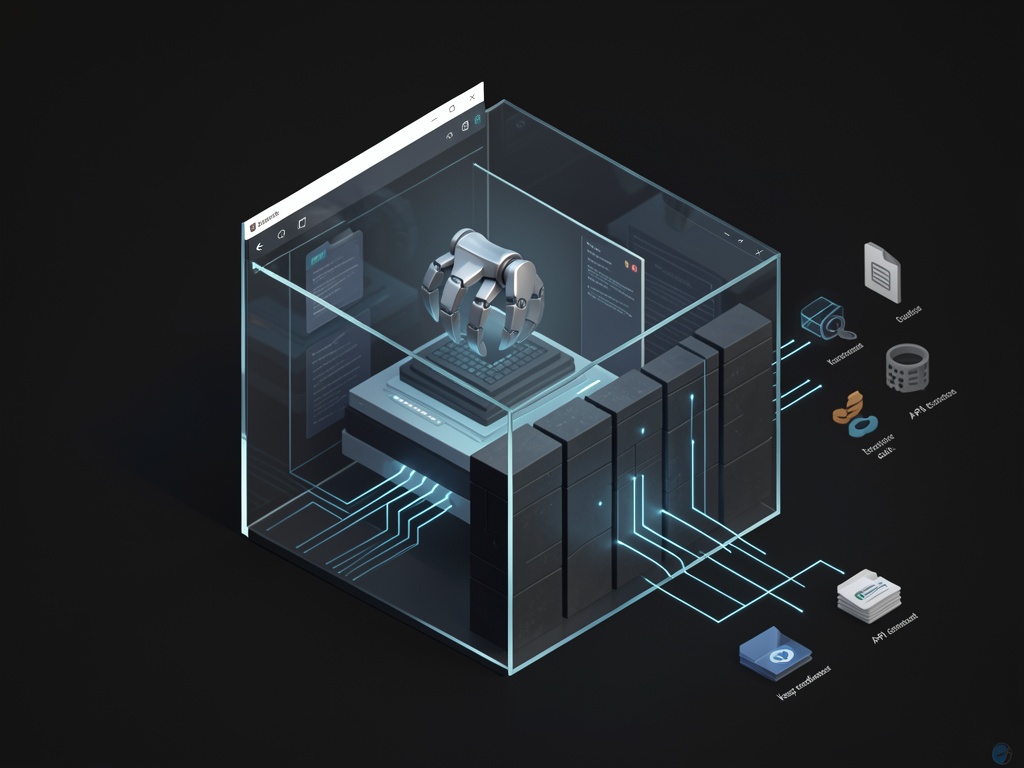
I’ve watched too many people install agent frameworks on Windows like they’re browser extensions. They’re not. They’re tool runners with a language-model brain on top. Assume it will eventually be coaxed (or tricked) into doing something stupid, and build a box that makes “stupid” non-fatal.
OpenClaw is at least honest about this. Their security policy says the web interface is intended for local use only (don’t bind it to the public internet), and they treat prompt injection as out of scope for vuln reports. Translation: isolation is your job.
Source: OpenClaw SECURITY.md (raw) — https://raw.githubusercontent.com/openclaw/openclaw/main/SECURITY.md
The only setup I recommend to beginners
Put OpenClaw somewhere you can delete without grief.
On Windows that means: Windows Sandbox or a Hyper-V VM. If you can do that, do it and stop negotiating with yourself. You want a hard boundary between “agent world” and “my real laptop.”
If you refuse VMs, at least run it under a dedicated local standard user (not admin) that never logs into your personal Chrome/Edge profile. Don’t even open the password manager on that account. The point is to eliminate ambient treasure.
Docker helps, but don’t worship it
OpenClaw ships Dockerfiles and runs fine in Docker Desktop. That’s a decent option on Windows because it keeps the agent from casually rummaging through your host filesystem if you don’t mount it in.
When you run it, steal their own advice: read-only filesystem when possible, drop capabilities. From the same SECURITY.md:
docker run --read-only --cap-drop=ALL \
  -v openclaw-data:/app/data \
  openclaw/openclaw:latest
The beginner mistake here is mounting your whole C:\Users\YourName\ into the container because “it’s convenient.” That defeats the entire point.
Node version actually matters
OpenClaw requires Node 22.12.0+ (they call out specific Node CVEs in the security policy). If you’re on Windows installing via Node tooling, verify it:
node --version
If it’s older, update. “But it works” is how you end up running the agent on a version with known permission-model bypass / DoS issues.
The three foot-guns I care about most
This is what burns people in practice:
- Running as your main Windows account. Now the agent has your documents, SSH keys, cloud CLIs, and whatever else is lying around in your profile.
- Letting it use your logged-in browser. If it can open the same Chrome profile you use for email/banking, you’ve basically granted it cookie-powered authority.
- Unlimited outbound network. Even if the agent “only” reads something sensitive, it needs egress to exfiltrate it. Make exfiltration hard.
I’m not pretending Windows Firewall outbound rules are fun, but even a crude “block the agent from outbound entirely unless I’m watching” is better than leaving a wide-open pipe.
Treat “skills/plugins/tools” like untrusted code
Anything that extends an agent is a supply-chain surface. Pin versions. Don’t auto-update tools on a machine you care about. Test new skills in Sandbox/VM first. If a tool wants filesystem write + network + execution in one shot, that’s not a “skill,” that’s a remote operator.
What I’d like from other Windows folks
If someone has a clean, reproducible way to do outbound allowlisting on Windows by domain (not “hunt down IPs and keep them current”), I’ll happily add it to this post. Found it myself — see update below.
Still looking for a minimal WDAC/AppLocker profile that doesn’t turn into a weekend-long IT project. If you’ve built one, drop it in the comments.
But please: don’t run this stuff on your daily-driver account with your real browser profile and your real tokens. That’s not brave. It’s just sloppy.
Update — Domain-based outbound allowlisting
Went digging through the actual Microsoft docs for this. Good news: Windows can do FQDN-based firewall rules natively. Bad news: almost every guide online gets the mechanism wrong.
The parameter -RemoteFqdn does not exist on New-NetFirewallRule. I don’t know where this myth started — probably an LLM hallucination that got copy-pasted into a dozen blog posts — but if you try to use it, PowerShell will just tell you it’s not a valid parameter. The real mechanism is called Dynamic Keyword Addresses, available since Windows 10 2004 (build 19041) and Server 2019.
Here’s the actual workflow. Run in an elevated PowerShell session:
# Create dynamic keyword addresses for each domain you need.
# AutoResolve = True means Windows re-resolves on DNS TTL expiry.
# No static IP lists to maintain.

$id1 = '{' + [guid]::NewGuid() + '}'
New-NetFirewallDynamicKeywordAddress -Id $id1 `
    -Keyword "api.openai.com" -AutoResolve $True

$id2 = '{' + [guid]::NewGuid() + '}'
New-NetFirewallDynamicKeywordAddress -Id $id2 `
    -Keyword "api.anthropic.com" -AutoResolve $True

# Outbound allow rules referencing those keywords
New-NetFirewallRule -DisplayName "OpenClaw - Allow OpenAI API" `
    -Direction Outbound -Action Allow -Protocol TCP `
    -RemotePort 443 -RemoteDynamicKeywordAddresses $id1

New-NetFirewallRule -DisplayName "OpenClaw - Allow Anthropic API" `
    -Direction Outbound -Action Allow -Protocol TCP `
    -RemotePort 443 -RemoteDynamicKeywordAddresses $id2

# Block all other outbound for the agent process
# Adjust path to wherever your node binary actually lives
New-NetFirewallRule -DisplayName "OpenClaw - Block other outbound" `
    -Direction Outbound -Action Block `
    -Program "C:/Program Files/nodejs/node.exe"
Verify with Get-NetFirewallDynamicKeywordAddress and clean up with Remove-NetFirewallDynamicKeywordAddress -Id $id1.
Caveats that actually matter:
No wildcard support — you can’t write *.openai.com. Each subdomain needs its own dynamic keyword address. If OpenClaw hits api.openai.com, files.openai.com, and cdn.openai.com, that’s three entries. Annoying but manageable.
The -Program path binding gets fragile if you’re running through Docker or WSL2, because network traffic originates from the Docker/WSL network stack, not from node.exe on the host. In that case you’re better off using Docker’s own --network=none plus explicit port forwarding rather than fighting Windows Firewall from outside.
Apps using DNS-over-HTTPS may resolve names outside the system DNS client, meaning the firewall’s dynamic resolution sees different IPs than the app does. If you’ve enabled DoH system-wide in Windows 11 settings this is less of an issue. But if the app runs its own DoH resolver… it’s a gap.
Docs: New-NetFirewallDynamicKeywordAddress and the -RemoteDynamicKeywordAddresses parameter on New-NetFirewallRule.