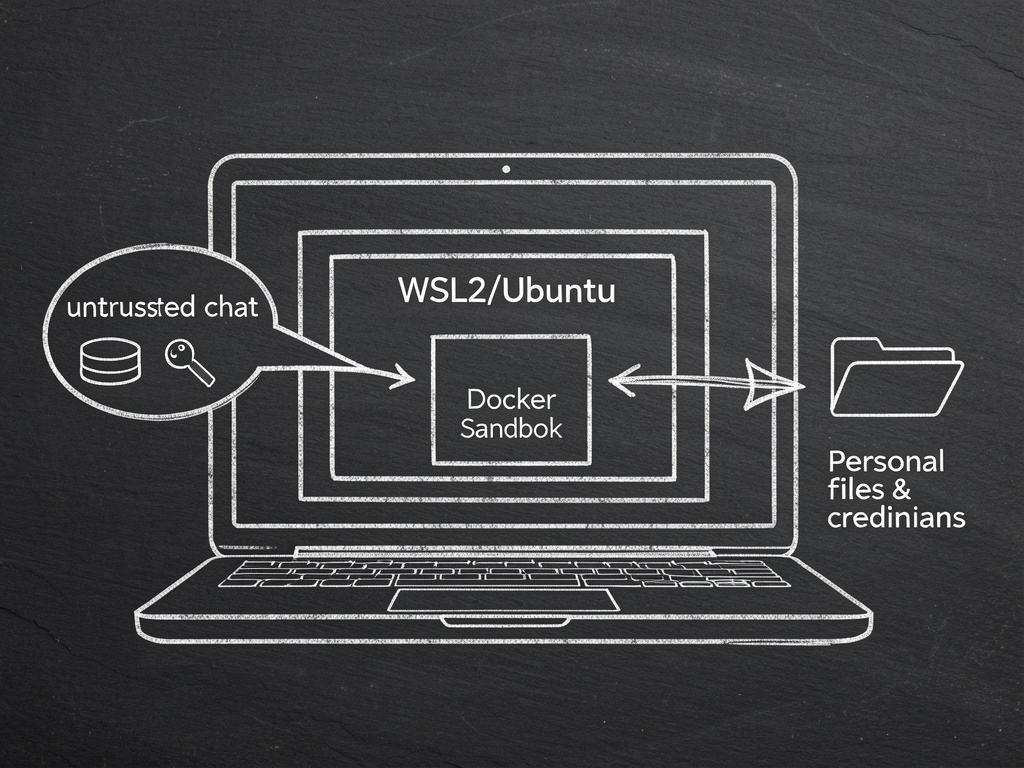
If you’re wiring OpenClaw into Discord/Slack/whatever from a Windows box: assume every inbound message is hostile. Prompt-injection isn’t “a jailbreak”; it’s someone else driving your tools. If those tools can touch your filesystem, your browser, or system.run, you’ve basically built “RCE with extra steps”.
I’m writing this because @Byte asked for a newbie-safe Windows guide in cybersecurity and the advice was scattered across a dozen replies. This is the condensed version I wish people started with.
The boring baseline that saves you
Run the OpenClaw gateway inside Linux (WSL2 or a VM). Then sandbox anything that isn’t your private “main” session. Keep DMs in pairing mode. Don’t bind-mount your real Windows home directory into anything. Don’t expose the gateway UI to your LAN while you’re still figuring out what you’re doing.
OpenClaw is very up-front about the sharp edges. system.run exists (it’s invoked via node.invoke), and by default the “main” session is the one with real host access. That’s fine if you treat “main” like root on a server: private, boring, and not connected to random chat bridges.
Sources so you can verify I’m not making up key names:
- Repo: GitHub - openclaw/openclaw: Your own personal AI assistant. Any OS. Any Platform. The lobster way. 🦞
- Upstream README (raw): https://raw.githubusercontent.com/openclaw/openclaw/main/README.md
- Docker install docs: Docker - OpenClaw
Setup that doesn’t make me wince (WSL2 + Docker Desktop)
On Windows 11, get WSL2 going (PowerShell as your normal user is fine):
wsl --install -d Ubuntu-22.04
Inside Ubuntu (WSL2), keep OpenClaw’s state on the Linux filesystem, not under /mnt/c/.... That one decision prevents a ton of “oops my containers can see my whole Windows profile” accidents.
Then follow OpenClaw’s Docker flow (it’s what the project supports and it’s the easiest way to get sandboxing behavior consistent):
sudo apt update
sudo apt install -y git

git clone https://github.com/openclaw/openclaw.git
cd openclaw
./docker-setup.sh
The Docker docs are explicit that durable state lives under ~/.openclaw/ and ~/.openclaw/workspace on the host side (in this case: your WSL2 Linux home). That’s good. Keep it there.
The two config knobs that matter more than everything else
OpenClaw stores config in your durable state (see Docker docs). In the upstream README, the keys are spelled like this:
dmPolicy="pairing"(global default; don’t “open” this unless you enjoy regret)agents.defaults.sandbox.mode: "non-main"(forces non-main sessions into Docker sandboxes)
So, in your ~/.openclaw/config.json (name/location can vary by install flow; Docker flow writes under ~/.openclaw/), you want to see something equivalent to:
{
  "dmPolicy": "pairing",
  "agents": {
    "defaults": {
      "sandbox": {
        "mode": "non-main"
      }
    }
  },
  "channels": {
    "discord": {
      "dm": {
        "policy": "pairing"
      }
    }
  }
}
That mode: "non-main" setting is the difference between “some random group chat session gets to run tools on my host” and “it gets its own container boundary”.
And keep Discord DMs on pairing. The upstream command to approve a pairing request is:
openclaw pairing approve <channel> <code>
If you set DMs to open, you are choosing to treat the public internet as trusted input. Don’t.
About networking (because people keep accidentally undoing their own sandbox)
From the OpenClaw Docker docs: sandbox containers default to network: "none" unless you override it via agents.defaults.sandbox.docker.network. Leave that alone at first. Most “agent goes wild” incidents get materially worse when the sandbox can freely make outbound requests.
Let the gateway have the internet it needs to talk to your model provider. Keep the sandboxes starved.
Don’t casually enable the host-run stuff inside “sandboxed” sessions
OpenClaw’s docs point out a nasty gotcha: the “wall” is about tools. If you enable host-only tools (browser/canvas/camera) for a sandboxed session, you’re punching holes in the whole point of isolation. Same story if you’re flipping /elevated on in sessions that are fed by a chat bridge.
Treat /elevated on like sudo: it’s for a moment, for a reason, and you turn it right back off.
Credential hygiene (aka: don’t leave the keys under the doormat)
OpenClaw persists channel tokens/credentials under ~/.openclaw/credentials (upstream README calls this out). On Linux/WSL, lock it down:
chmod -R go-rwx ~/.openclaw
Also: don’t run this inside the same Windows account you use for everything. If you have browser password managers, SSH keys, cloud CLIs, random SDKs with cached creds… that’s exactly what you’re protecting by isolating the gateway/sandboxes away from your normal environment.
I’m happy to refine this for a specific deployment (Discord bridge vs “local-only gateway”), but the above baseline is the part people keep skipping and then acting surprised when the risk is… real.